Installation and Accounts
Create your palmER AI Suite account, start your free trial, and install the iOS and Android mobile app. Sign in with your email and password or a QR code.
palmER AI Suite gives you two ways to work: a web platform for full charting, MDM, clinical reference, and a mobile app for ambient scribing at the bedside. They share one account. Set up takes about a minute.
One account, two places to work
Create your account on the web at platform.palm-er.com. Then sign in to the mobile app with that same account to start scribing on your phone. Your patient list is always synced between both.
Create Your Account
Create your palmER account on the web. The mobile app requires an existing account, so start here first.
Enter your credentials
Enter your email address and create a secure password, or use Sign in with Google. If you use Google, you'll sign in to the mobile app with a QR code.
Click Sign Up
Complete the account creation process.
Sign In to the Web Platform
Enter your credentials
Type in your email and password, or continue with Google.
Click Sign In
Access your palmER AI Suite account.
Start Your Free Trial
Click the "Start Free Trial" button in the sidebar to unlock 30 days of full access:
- Ambient Scribing on web and mobile
- MDM, HPI, and Physical Exam Assistants
- ConsultER
- Chart CheckER
- palmEM AI Reference
No payment or credit card required
Your trial gives you immediate access to all features. The trial expires automatically and you will not be billed.
Get the palmER Mobile App
The palmER AI Suite mobile app lets you start an Ambient Scribe session right at the bedside. palmER listens while you focus on the patient, and you walk out of the room with your chart already drafted. Your HPI and Physical Exam generate automatically, then you finish the MDM on the web platform.
You need a palmER account first
The app requires an existing account. If you have not created an account yet, sign up free on the web first, then sign in to the app.
Download and install
Get palmER AI Suite from the App Store or Google Play.
Sign In to the App
When you open the app, you will see the Welcome screen. There are two ways to sign in.
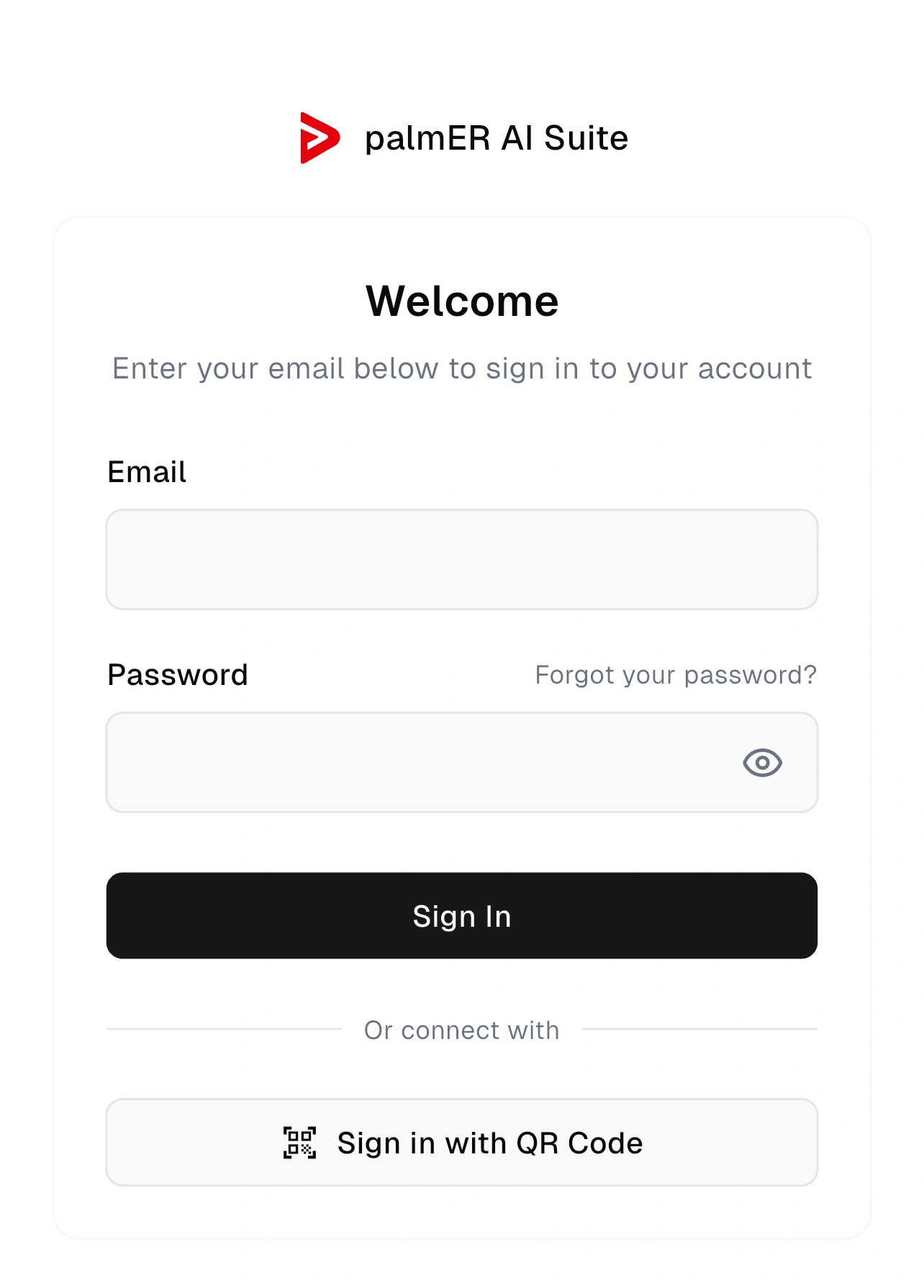
Signed up with Google? Use the QR code
If you signed up with Google, sign in with the QR code. It is quick and secure, and you never type a password on your phone.
Option 1: Sign in with QR code (fastest)
Scan a secure code from your web session and the app connects to your account. No password typing on a small keyboard. This is the fastest path for most clinicians, and the required path if you signed up with Google.
Open the QR code on the web
On a computer, sign in at platform.palm-er.com. Click your email in the lower-left corner to open the account menu, then select Sign in on mobile.
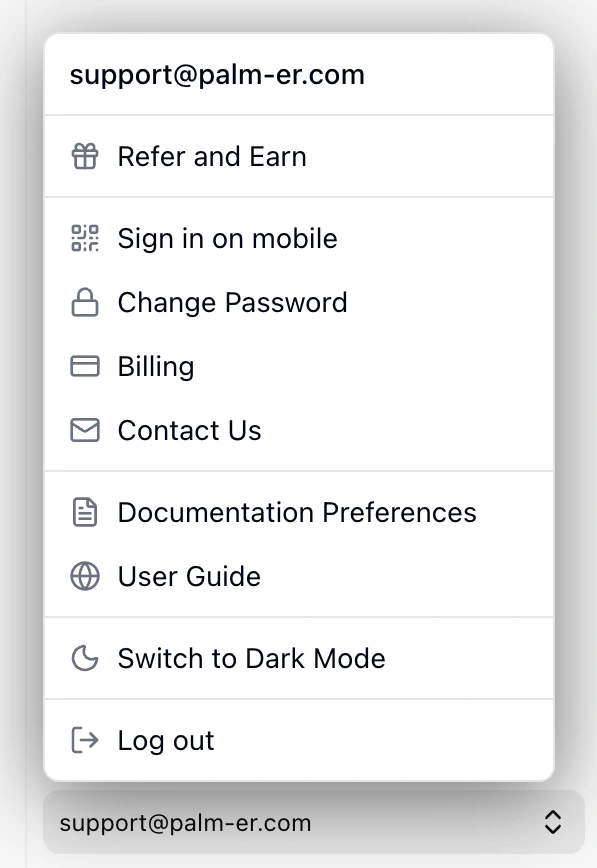
A QR code appears
The Connect palmER mobile window shows a QR code. It is single-use and refreshes on its own for security, so the code on screen is always ready to scan.
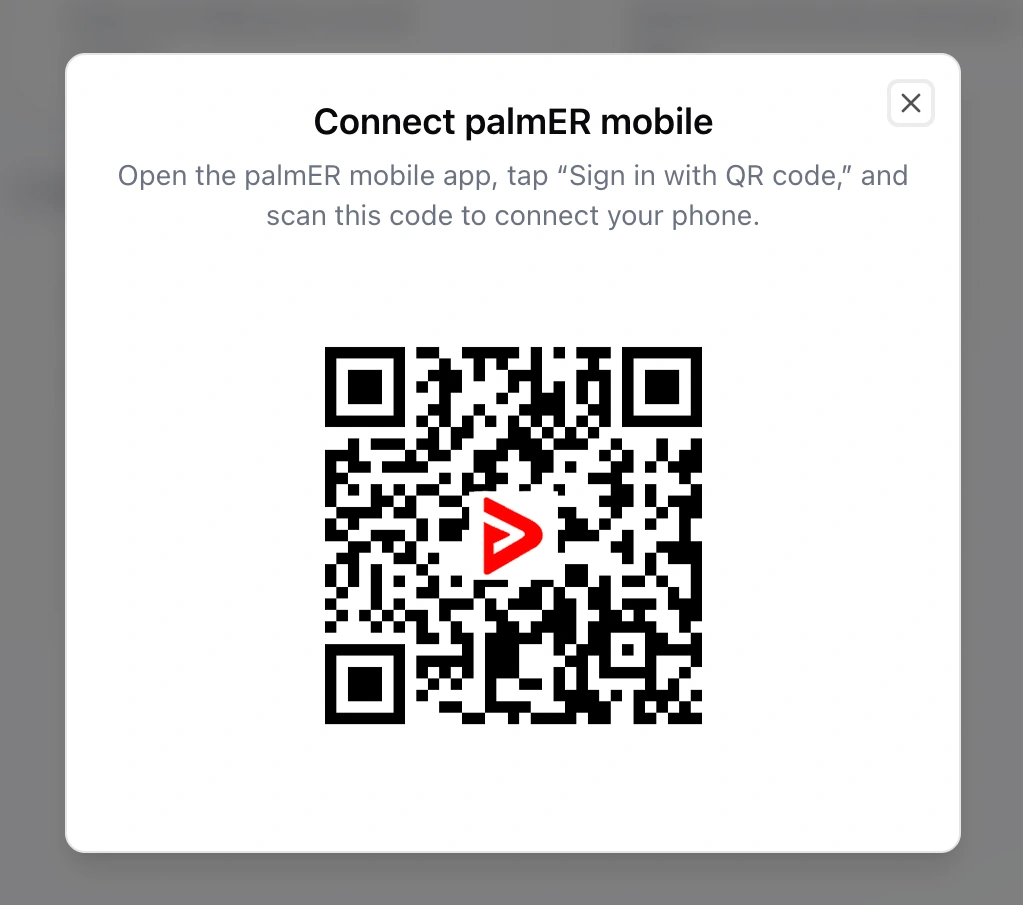
Scan it with the app
In the app, tap Sign in with QR Code, allow camera access, and point your phone at the code. You are signed in and connected to your account.
Option 2: Sign in with email and password
If you created your account with an email and password, you can sign in directly.
Enter your email and password
On the Welcome screen, type the email and password for your palmER account.
Tap Sign In
You are signed in and ready to scribe.
Forgot your password?
Tap Forgot your password? on the sign-in screen and enter your email. We will send a reset link if an account exists for that address. If you signed up with Google, use the QR code instead.
You're in. Scribe your first encounter
Select or add a patient, then Start Ambient Scribe, and see your patient. When you tap Complete, your HPI and Exam draft automatically. See Ambient Scribing for the full walkthrough.
Managing Your Account
Account settings live on the web platform. Click your email in the lower-left corner to open the account menu.
From there, you can:
- Customize palmER with Documentation Preferences
- Sign in on mobile (open the QR code to connect a phone)
- Change your password
- View billing information (for subscribers)
- Contact Support
- Toggle light/dark mode
- Log out
In the mobile app, the account menu (at the bottom of your patient list) lets you switch between light and dark mode and log out. Everything else is managed on the web.
Need Help?
If you run into any issues:
- Trouble signing in to the app? See Common Issues & Troubleshooting
- Use the Contact Us option in the web account menu
- Or visit our contact page
We're happy to help.
Next Steps
- Getting Started with palmER - a tour of your first shift with the suite
- Microphone Setup - get ambient scribing working on your device
- Ambient Scribing - how bedside capture works in the mobile app
Key Features and Benefits
Emergency medicine AI documentation platform with Ambient Scribing, MDM generation, and clinical decision support. Faster charts, better notes, fewer clicks.
Getting Started with palmER AI Suite
Quick start guide for palmER AI Suite. Learn about the MDM, HPI, Exam, and Ambient Scribing tools. Navigate the platform and set up for your first shift.